
SciPen Studio User Guide
From install to your first PDF
Three steps get local writing and compilation running. Configure AI models, Zotero, or Overleaf later as needed.
Quick Start
- Install Studio Download the installer for your operating system from official Releases.
- Open a project folder Pick a local folder holding
.tex,.typ, or.mdfiles. - Compile and preview Open a LaTeX or Typst file and click Compile or press Ctrl + Enter (Cmd + Enter on macOS) to render the PDF side by side.
NoteEditing, compilation, and PDF preview work without setting up an AI model or Overleaf account.
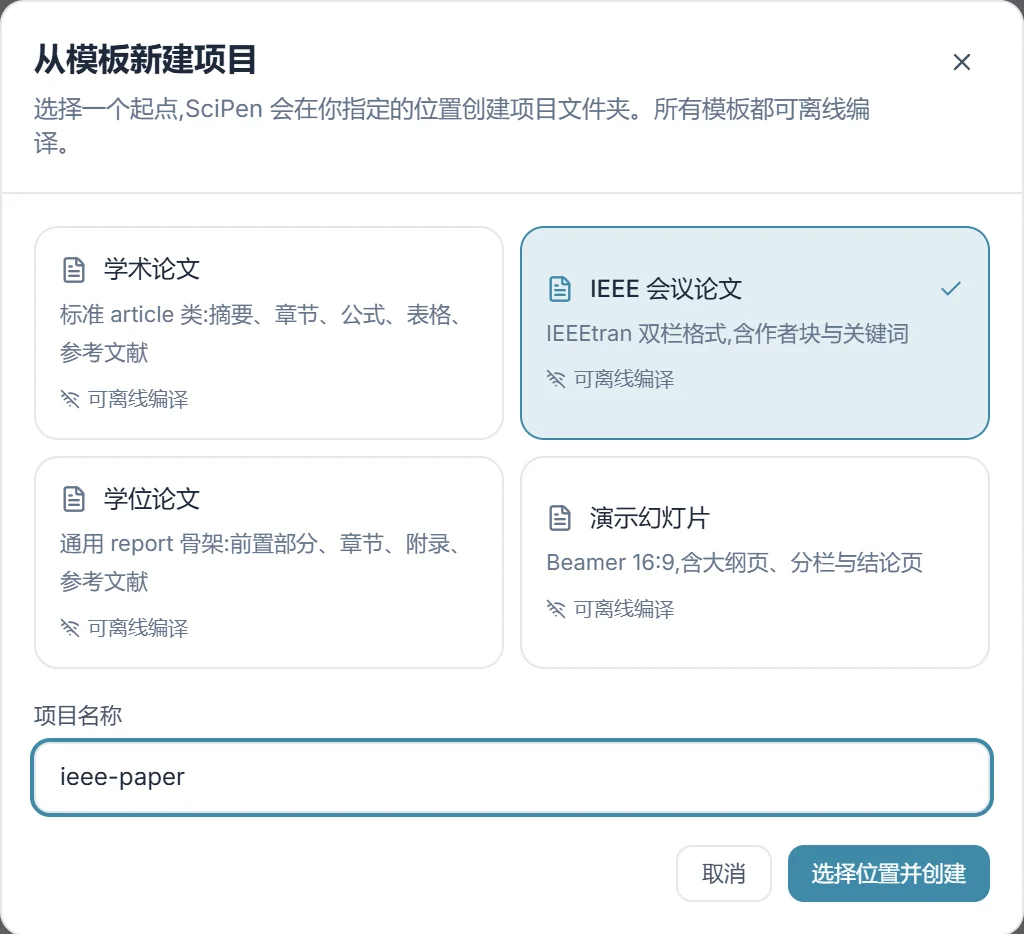
Editing and Compilation
Monaco provides syntax highlighting and navigation for LaTeX, Typst, and Markdown. LaTeX and Typst also include completions and diagnostics, while Markdown supports citation completion and live preview.
Two-way LaTeX and PDF sync
SyncTeX links source and preview: Ctrl+click LaTeX source to jump to the matching PDF line, or click inside the PDF to return to source. SyncTeX is not supported for Typst yet.
Compiler engines
For LaTeX, Studio prefers local XeLaTeX, LuaLaTeX, or Tectonic when installed, falling back to the bundled BusyTeX engine; Typst uses bundled Tinymist by default. Switch engines anytime in Settings → Compiler.
NoteBundled BusyTeX includes common packages only. First-time use of ctex, xeCJK, or journal classes fetches missing packages once and caches them locally; install a local TeX distribution for fully offline compilation.
AI Assistant and Inline Edits
The Agent can read project files, propose file edits, and run writing, peer-review, and literature survey Skills. By default, changes appear as proposals for you to accept or reject, and new files require confirmation.
Configuring models
Enter your endpoint URL, model name, and API key under Settings → AI. Both OpenAI and Anthropic compatible APIs are supported; chat and inline completion share the endpoint and key while letting you pick separate models.
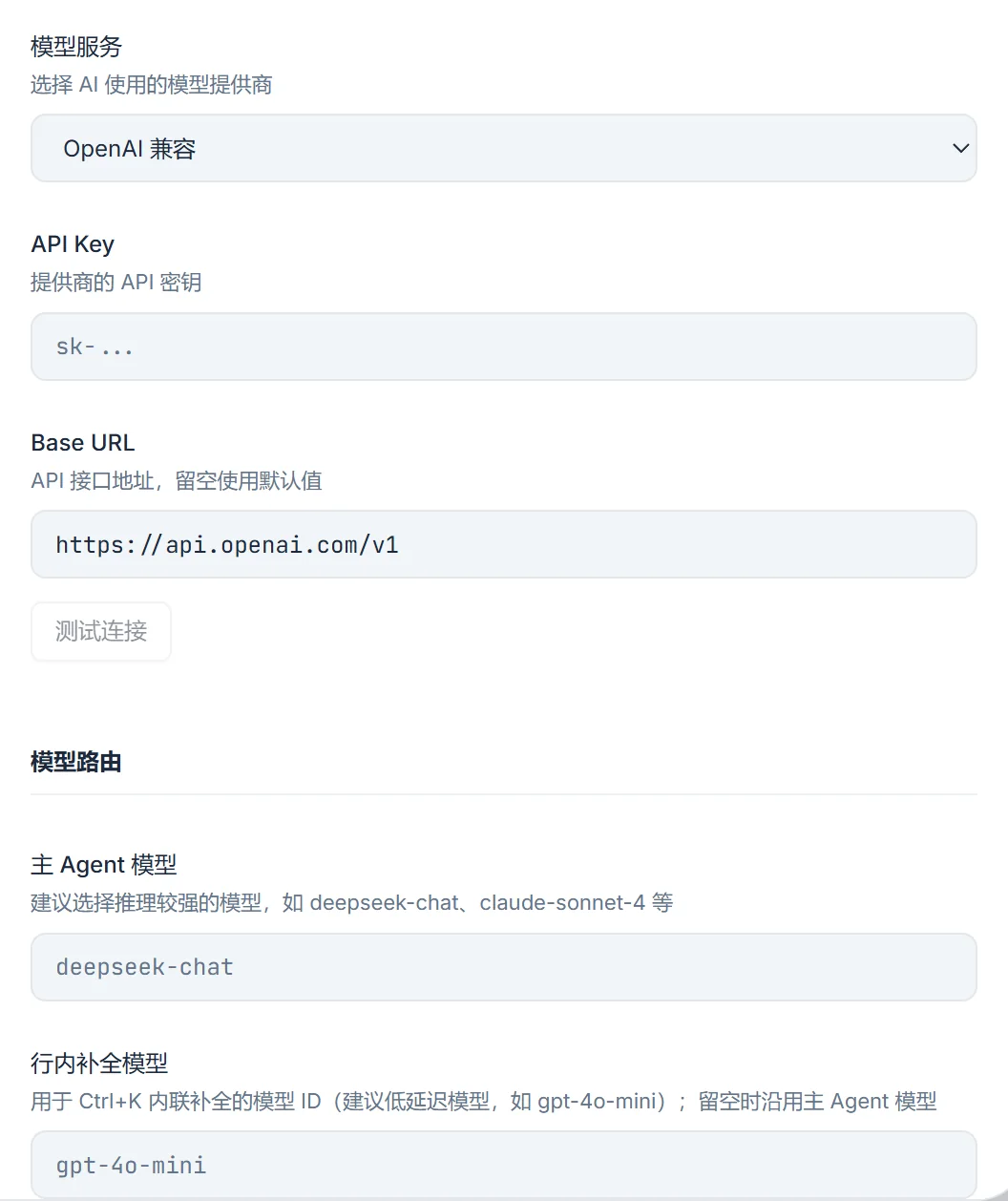
NoteDocuments stay on disk locally; AI requests go to the endpoint you configure. Data retention depends on that provider's policy and your account settings.
Editing inline in the editor
- Select text and press Ctrl + K to describe an edit; press Tab to accept or Esc to dismiss.
- Press Ctrl + L for selection actions such as translation, explanation, and reference lookup.
- When enabled in settings, use Alt + D to invoke the assistant from other desktop apps.
- Agent Diff Review accepts or rejects a proposal as a whole; turning on auto-approve skips selected confirmation prompts.
Known issueIn version 0.5.1, the Diff Review addition pane still displays the original text; clicking accept writes the Agent's proposed text. The demo recordings preserve this 0.5.1 behavior.
Web search
Live web search requires a Tavily API key, while fetching known URLs with WebFetch needs no extra key. Verify AI-generated claims and citations before keeping them.
References, Sync, and Local History
Zotero citations
Full desktop citation support uses Zotero 7 with Better BibTeX. Type \cite{ in LaTeX for completions, hover entries for metadata, and Ctrl+click to open the local PDF; Typst and Markdown also support citations.
The Zotero Web API supports personal libraries as well as Typst and Markdown citations, while PDF opening relies on the desktop Zotero client. You may need to reopen a project after exporting a fresh Zotero index.
Overleaf project sync
Sign in to pull an Overleaf project locally, edit in Studio, and compile on your machine. Saving pushes changes back; when conflicts happen, choose whether to keep the local or remote version.
CautionPulling a project again overwrites your local copy. Back up local changes before re-downloading. Studio compiles locally on your machine.
Local history
Compiling, larger AI edits, periodic timers, and manual triggers create local snapshots covering open files so you can inspect diffs and restore earlier versions.
FAQ
Do I need internet access or an AI key to write papers?
No. Local editing, compilation, and PDF preview run without an AI key or Overleaf login. If a LaTeX project uses packages not pre-bundled in BusyTeX, the first compile downloads and caches them locally; a native local TeX distribution compiles completely offline.
Can I bring my own model, and are local files uploaded?
Yes. Configure your own API key, model name, and base URL in Settings → AI for OpenAI or Anthropic compatible endpoints. Files remain on your local disk; requests are sent to your configured model provider only when you run an AI action.
Which formats support SyncTeX and Zotero completions?
SyncTeX bidirectional navigation works for LaTeX and is not available in Typst yet. LaTeX \cite{ autocomplete requires desktop Zotero 7 plus Better BibTeX, while Typst and Markdown can also pull references through the Zotero Web API.
How do Overleaf conflicts and unsigned installer warnings work?
If Overleaf and local edits diverge, Studio asks you to choose which version to keep; re-downloading overwrites local copies, so back up changes first. Current installers are unsigned, so macOS users can right-click Open or clear the quarantine attribute, and Windows users can click More info → Run anyway in SmartScreen.